The Risks of Buying a Used iPhone in Delhi NCR
Every single day across Delhi, Noida, and Gurgaon, hundreds of buyers scour local classifieds and street markets looking for a deal on a second-hand iPhone. But without professional inspection tools, buying a pre-owned Apple device is fraught with hidden hazards: duplicate TFT/LCD screens masquerading as OLEDs, boosted batteries with fake 100% health percentages, water damage, and blacklisted IMEIs.
If you are buying directly from an unverified seller, follow this exhaustive 16-point checklist before handing over any money.
The Definitive 16-Point iPhone Inspection Checklist
1. Original Display & True Tone Calibration
An authentic Apple OLED screen is expensive. Disreputable sellers often replace cracked screens with ₹2,000 duplicate LCDs. Go to Settings > Display & Brightness and verify that the True Tone toggle exists and functions. Then check Settings > General > About. If you see an "Important Display Message" or "Unknown Part", the screen is an aftermarket replacement.
2. True Battery Health & Cycle Count
Check Settings > Battery > Battery Health & Charging. A healthy 2-year-old iPhone typically sits between 82% and 90%. Be extremely suspicious of 100% battery health on older models like an iPhone 11, 12, or 13—this frequently indicates the battery has been "boosted" using hardware programmers.
3. Physical IMEI & Box Match
Dial *#06# on the phone keypad to reveal the 15-digit IMEI. Cross-reference this number with the SIM tray engraving and the serial label on the original box.
4. Government CEIR Stolen Blacklist Check
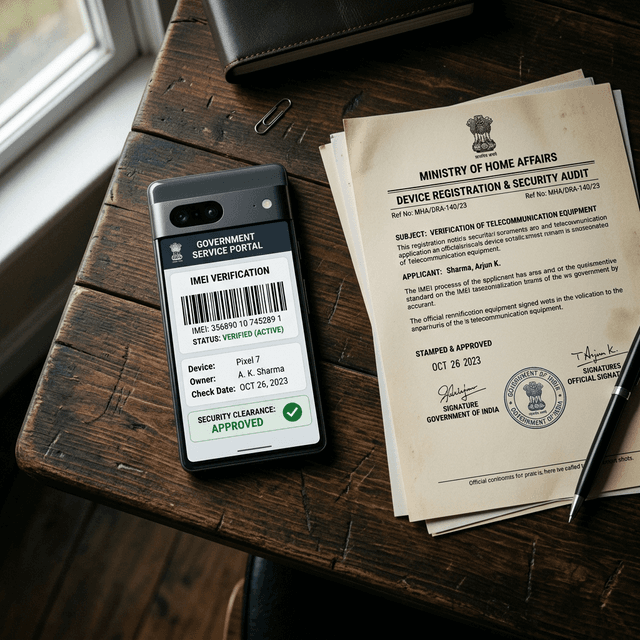
Visit the Government of India's Central Equipment Identity Register (CEIR) portal at ceir.gov.in or use the KYM app to verify the IMEI is clean, valid, and not registered under an active police FIR.
5. TrueDepth Camera & Face ID Hardware
Set up your own face in Settings > Face ID & Passcode. Face ID relies on an infrared flood illuminator and dot projector. If the device suffered water damage or a botched screen replacement, Face ID will permanently fail with an error message.
6. All Camera Sensors (0.5x, 1x, 3x, 5x)
Switch between every lens in the Camera app. Test autofocus on objects 10 cm and 2 meters away. Record a slow-motion video with audio to test optical image stabilization (OIS) and motor rattles.
7. Triple Microphone Array Check
iPhones have three distinct microphones: bottom (calls), front (speakerphone/Siri), and rear (video recording). Record a Voice Memo to test the bottom mic, make a FaceTime call for the front mic, and shoot a video with the rear camera for the back mic.
8. Stereo Speaker Balance
Play a high-bitrate song at maximum volume. Check both the bottom speaker grille and the top earpiece speaker for distortion, crackling, or muffled sound caused by pocket lint or liquid ingress.
9. Touch Digitizer Matrix & Dead Zones
Long-press any home screen app icon until it jiggles, then drag it continuously across every square centimeter of the display, especially along the four corners and the notch/Dynamic Island area. If the icon drops, the digitizer has a dead zone.
10. Wi-Fi, Bluetooth & AirDrop Handshake
Connect to a Wi-Fi network and test speed. Turn on Bluetooth and pair with a nearby device. Send a photo via AirDrop to confirm the ultra-wideband (UWB) wireless chip is undamaged.
11. Lightning / USB-C Port & Charging Current
Plug in a cable both right-side up and upside down. Ensure the port grips the cable firmly with a solid click. Verify that the device negotiates charging without intermittent disconnects.
12. Physical Buttons & Haptic Taptic Engine
Test the volume up/down rockers, power button, and action button / mute switch. Test 3D touch/haptics in Settings to ensure the linear Taptic Engine vibrates crisply rather than buzzing like an unbranded rotor motor.
13. Liquid Contact Indicator (LDI)
Eject the SIM tray and look inside the slot with a flashlight. Apple places a Liquid Contact Indicator inside. If the indicator shows red or pink, the phone has suffered water damage. If white or silver, it is dry.
14. Gyroscope, Compass & Proximity Sensor
Open the Compass app and calibrate it. Make a phone call and cover the top bezel with your hand; the screen should turn completely black immediately to prevent ear touches.
15. Complete iCloud & Find My Removal
Verify that Settings > [User Name] is completely signed out and Find My iPhone is turned OFF. A device locked to another person's Apple ID is virtually a brick.
16. Cellular 5G Band & SIM Tray Verification
Insert your Indian SIM card (Jio or Airtel). Confirm that 5G/4G VoLTE connects instantly and make a test call to ensure antenna bands are functional.
Unverified Street Check vs Handovr Certified Inspection
| Inspection Area | Handovr Doorstep Check | Street / Classified Meetup |
|---|---|---|
| Display Authenticity | Hardware optical colorimeter & True Tone audit | Visual guess under streetlights |
| Battery Cycle Count | Direct BMS register cycle verification | Blindly trust iOS percentage |
| Legal Clearance | Real-time CEIR govt stolen database query | None (100% buyer risk) |
| Payment Security | Platform Escrow + 48-Hour Defect Window | Cash upfront, zero refund recourse |
Skip the Hassle, Buy Verified
Executing all 16 steps manually takes 30 minutes and specialized technical equipment. At Handovr, our certified technicians perform this entire diagnostic suite at your doorstep before funds are released. Explore verified pre-owned iPhones in Delhi NCR on Handovr.